




Multi-Brand Compatible
Compatible Printers
Use With Auto-Ejection Systems
Learn More
Multi-Material Printing
Learn More
Compatible Printer Models
Not affiliated with the brands shown. Logos are used only to represent compatibility only.


This is not a complete list. Flow Q can be used with many 3D printers not listed using any of the connection methods above. Have a question about your printer? Ask our team.
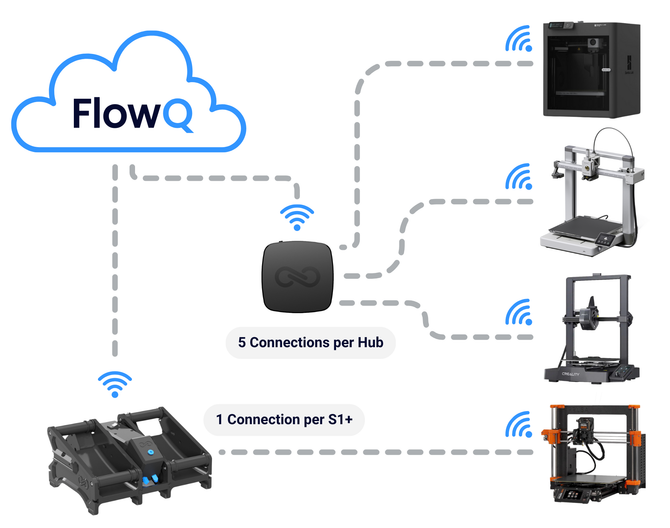
Connection Methods:
- Bambu Labs Printers using LAN-mode & Dev-mode
- Prusa Printers via Prusa Link
- Flashforge on LAN-mode
- Klipper based printers via Moonraker or brand specific API's (No firmware modifications needed for most 3D printers).
Bambu Labs
Creality
Elegoo
Flashforge
FLsun
IdeaFormer
Prusa
Qidi
Rat Rig
Sovol
Voron
Others ...
Auto-Ejection Systems
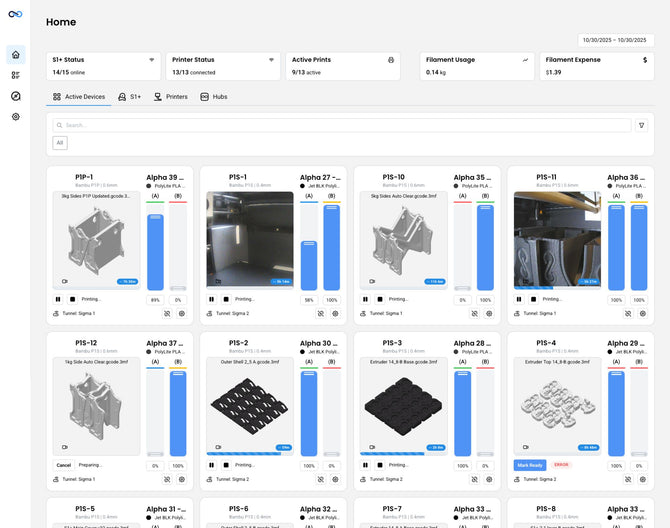
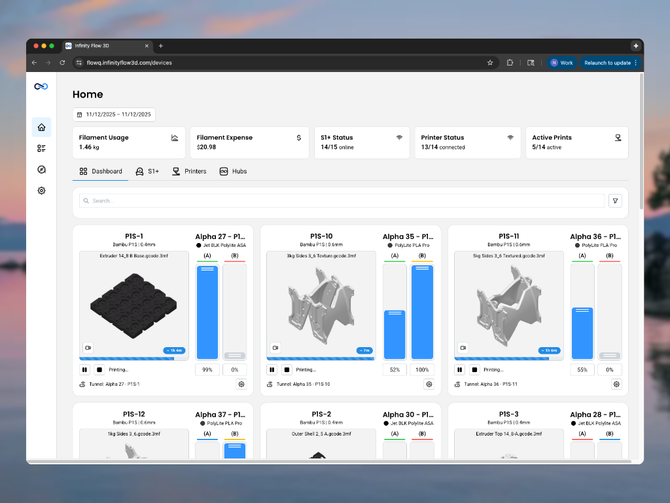
For setups that can eject the print, FlowQ can be used to set up a print queue and looping to keep your printer running 24/7.

Step 1: Slice & Process File
Log into FlowQ anywhere in the world. Keep prints running over weekends and while you are away.

Step 2: Upload to FlowQ
Cloud data uses end-to-end & at rest encryption of all user data. Proudly developed and hosted in the USA.

Step 3: Setup Queue & Looping
No server setup. No code. Just connect a FlowQ hub to your account to communicate with your printers.


Custom Slicer Profiles
Modify your printer's start & end G-code and save a new custom printer profile in your slicer.
Slice parts using your auto-ejection profile and upload them straight to FlowQ.
Up to 16 colors - all printer models
Multi-Material Printing
Basic multi-material printing is supported on all printers. Support for features like automatic color mapping and smart print routing are limited to specific printer models.

Automatic Mapping
Bambu printers with an AMS can accept single or multi color prints. Materials are automatically mapped by FlowQ to

Smart Print Routing
Automatically re-map & send tasks to printers with matching filament.

Direct Material Mapping
FlowQ supports multi-color printing on any printer connected to your dashboard with direct mapping.
Frequently Asked Questions
Answers to some of our most common questions.
