



Disclaimer: Infinity Flow 3D and FlowQ are not affiliated with FarmLoop or its developers. Use of trademarks and images is meant to show compatibility only.
3D print farm automation is the process of automatically managing and repeating 3D print jobs across multiple printers with minimal human intervention. This typically includes automatic part ejection, automatic print restarts, and a centralized print queue management software like FlowQ.
Running an automated 3D print farm efficiently requires more than just good printers. You also need a system that can automatically restart prints, clear finished parts, and manage production across multiple machines.
This guide explains a simple workflow many print farms use:
- Slice your files normally
- Use FarmLoop to add part ejection automation
- Upload those files to FlowQ
- Use FlowQ to manage repetitions, scheduling, and production queues
Table of Contents
- Overview
- Step 1: Slice Your Print Files
- Step 2: Add Ejection Automation with FarmLoop
- Step 3: Upload Files to FlowQ
- Step 4: Create a Print Queue
- How FlowQ and FarmLoop Work Together
- Tips for Reliable Automation
- Frequently Asked Questions
Overview
FarmLoop and FlowQ solve different parts of the print farm automation problem.
FarmLoop modifies your print files so the printer can automatically eject finished parts and prepare for the next print.
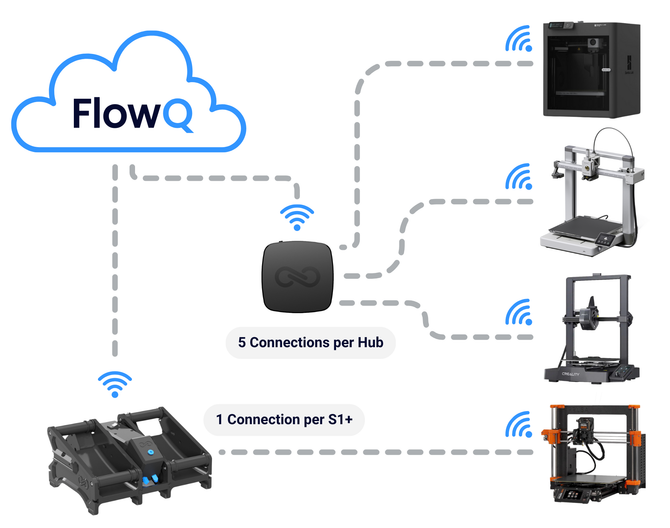
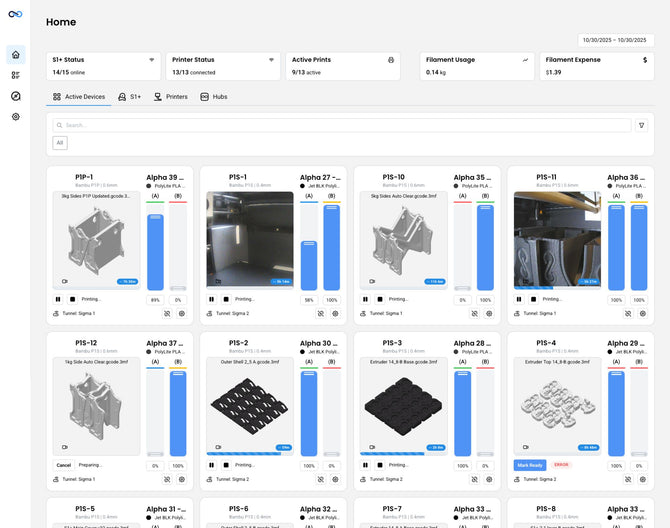
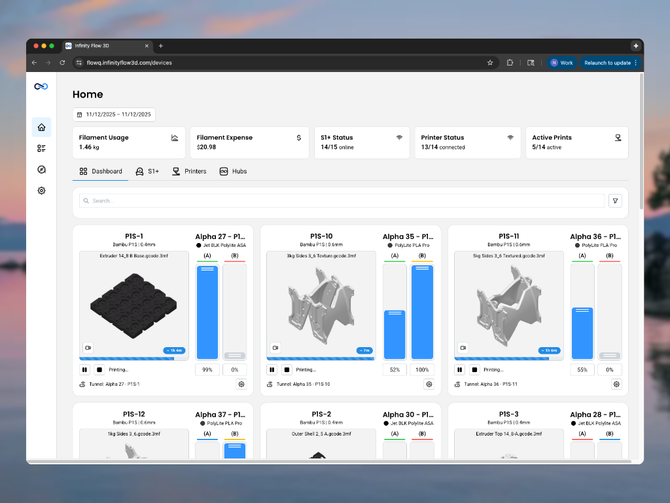
FlowQ manages your printer fleet. It sends jobs to printers, tracks production, and allows you to run an automated queue across multiple machines.
When used together, they allow a fleet of 3D printers to run continuously with minimal manual intervention.
Step 1: Slice Your Print Files
Start by slicing your model normally in Bambu Studio.
Configure your print settings as you normally would, including:
- Layer height
- Infill
- Supports
- Material settings
Once slicing is complete, export the print file by clicking Export Plate Sliced File.

Step 2: Add Ejection Automation with FarmLoop
Next, use FarmLoop to modify the print file so the printer can automatically eject finished parts.
FarmLoop allows you to fine-tune your print ejection parameters for maximum reliability.
Basic Setup
- Upload your sliced file into the FarmLoop App
- Configure the part ejection motion
- Test the motion on your printer
- Export the modified print file
The exported file will now include automation that clears the build plate after each print.
Important: Always test ejection multiple times before running large production batches.

Step 3: Upload Files to FlowQ
Once your automated file is ready, upload it to FlowQ.
- Log into your FlowQ account
- Open the file library
- Upload the modified print file
FlowQ stores files so they can be used across multiple printers and queues.

Step 4: Add File(s) to Print Queue
FlowQ uses a production queue to manage automated printing.
The queue allows you to define how many times a part should be printed and which printers will run the job. You can rearrange and edit your queue at any time, even while printing.
Setting Up Your Queue
- Add your print files to the Queue
- Set the number of repetitions
- Reorder items in the Queue if needed
Once the printer is marked as ready, FlowQ will automatically send the next job in the Queue based on printer-file compatibility. You can learn more about how the queue works here.
When a printer finishes a job and becomes idle, FlowQ sends the next job in the queue.


How FlowQ and FarmLoop Work Together
Each system handles a different part of the automation process.
FarmLoop handles the physical automation on the printer.
- Ejects finished parts
- Clears the build plate
- Prepares the printer for the next job
FlowQ handles production management.
- Schedules print jobs
- Distributes work across printers
- Tracks production progress
The workflow typically looks like this:
Print finishes → FarmLoop ejects the part → Printer becomes idle → FlowQ sends the next job
Tips for Reliable Automation
Test ejection thoroughly.
Run several test prints before starting long production runs.
Use build plates that release parts easily.
Flexible plates or textured surfaces often work best.
Keep printers dedicated to specific parts when possible.
This reduces configuration errors and improves reliability.
Monitor filament levels.
Running out of filament mid-queue can interrupt production.
Start with smaller queues.
Once everything is working reliably, increase production runs.
Frequently Asked Questions
Do I need FarmLoop to use FlowQ?
No. FlowQ manages print queues and printer fleets. FarmLoop is one way to add automated part ejection to your print files.
Can FlowQ repeat prints automatically?
Yes. FlowQ queues allow you to set repetition counts so a part can be printed many times across one or more printers.
Does FlowQ modify print files?
No. FlowQ sends and manages print files but does not modify them. Tools like FarmLoop can be used beforehand to add automation such as part ejection.
Can multiple printers run the same queue?
Yes. FlowQ distributes jobs across all compatible printers.
What happens if a printer finishes a job?
When a printer finishes and becomes idle, FlowQ automatically sends the next job in the queue.
Doesn't FarmLoop already allow you to loop parts?
Yes, but it is important to understand that FarmLoop and FlowQ work in slightly different ways. FarmLoop edits the G-code file to set a certain number of repeated prints directly inside the file.
This works well when you want a printer to run the same job repeatedly on a single machine.
FlowQ takes a different approach. Instead of hardcoding repetitions into the print file, FlowQ sends files one at a time automatically. This allows you to:
- Run the same job across multiple printers
- Change the number of repetitions without modifying the file
- Add or remove files from the queue at any time
- Schedule and organize production more easily
Many print farms use FarmLoop to handle automated part ejection inside the print file, and then use FlowQ to manage queue-based production across their printer fleet.

