



Overview
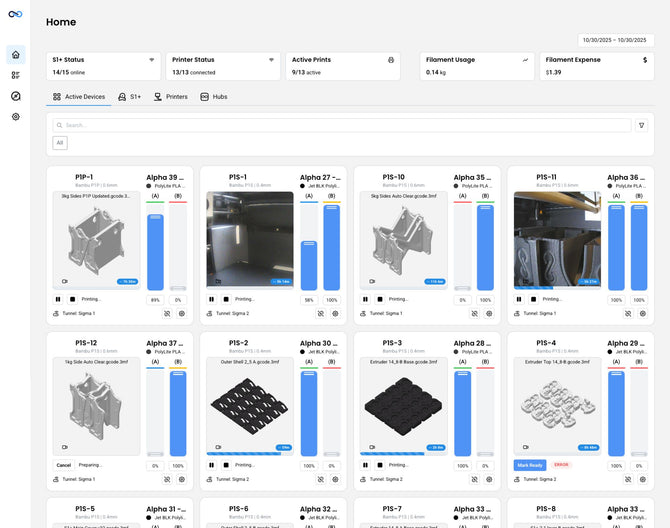
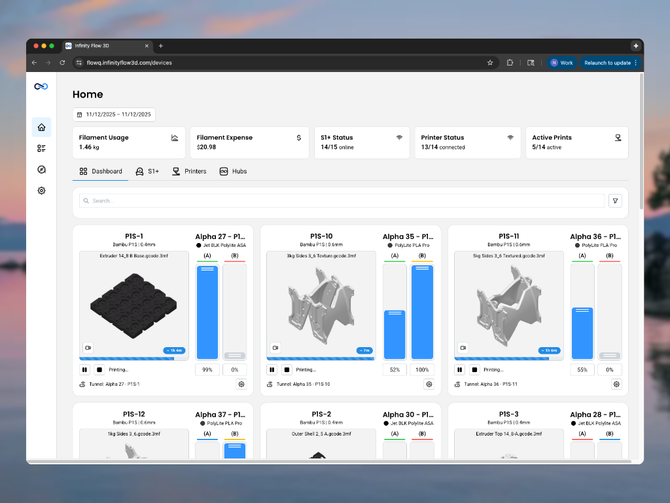
This guide explains how to add a 3D printer to FlowQ, the cloud-based platform designed for 3D print farm automation and printer fleet management. Once added, FlowQ can monitor your printer, automate print routing, manage queues, and streamline remote control across your entire print farm. FlowQ supports a wide range of printers including Bambu, Creality, Prusa, and any printer running Klipper and Moonraker. If your printer model is not listed, you can manually enter it or connect any custom Klipper build for full integration into your automated workflow.
Adding a Printer to FlowQ
-
Log into your FlowQ dashboard and navigate to the Printers tab and click the Add Printer button.

-
Enter a name for your printer.
-
Select the printer's make and model from the dropdown list. If the model does not appear, type it manually to add a custom model.
-
-
This means the printer has not been tested by our team but may still be compatible.
-
You can also add any Klipper-based printer by typing its model name. Custom Klipper printers will need Moonraker installed and running in order to communicate with FlowQ. When adding a Klipper printer, use the Custom Klipper option to enter your printer's details, IP address.

-
-
Preparing Your Printer
If needed , additional setup instructions will appear in a box above the Network Info section. Complete these steps before moving on.
-
-
Some printers may require additional preparation such as enabling LAN Mode, enabling Developer Mode, or installing Moonraker, however, most printers require no additional steps.
-

Selecting a Tunnel
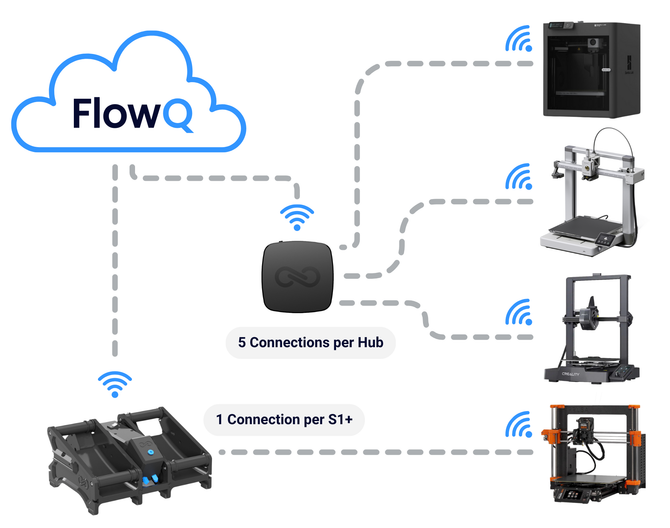
Select a Tunnel from the dropdown menu. A tunnel is a device used to securely connect printers on your local Wi-Fi network to the FlowQ cloud. All communication is encrypted end-to-end and data is encrypted at rest.
-
-
A tunnel can be an S1 Plus, a FlowQ Hub, or a computer or other device with FlowQ Connect installed (See Guide).
-
You may save your printer without a tunnel while you are setting up your account, but the printer will show offline until a tunnel is connected.
-
If you are using an S1 Plus as your tunnel, it is required that it also be used as your filament management system. Your printer will inherit the filament profile set in your S1 Plus settings.
-

Entering Network Information
Enter your printer's network information exactly as shown.
-
-
This information is case sensitive and must match your printer's configuration.
-
Incorrect or mismatched information will prevent FlowQ from connecting to your printer.
-

Selecting Filament Information
Choose your filament management setup. FlowQ will route prints based on the filament profile selected here.
-
-
Normal Filament Profile — Use this for printers with a standard spool and no filament management system like an AMS or S1+.
-
S1 Plus — The printer inherits the filament profile from the connected S1 Plus settings. If you are using an S1 Plus as your tunnel, it is required that it also be used as your filament management system.
-
AMS (Bambu) — Required if your Bambu printer has an AMS connected, even if only one slot is used.
-

Final Settings
-
Select your nozzle diameter.
-
If supported by your printer, enable the camera to view the live feed from the FlowQ dashboard.
-
Save your printer.
Your printer will now appear in your dashboard. Once a tunnel is selected and your network information is correct, the printer will show online and be ready for automation.

Troubleshooting
Printer Not Showing Online
-
-
Make sure a Tunnel is selected for the printer. A printer will always remain offline without a connected tunnel. If the tunnel dropdown is disabled, this means you have the maximum number of printers connected for your plan.
-
Verify that your tunnel device (S1 Plus, Hub or computer running FlowQ Connect) is online and connected to the same wifi as your 3D printer. The status of your tunnel can be seen in the S1+, Hubs, or FlowQ Connect tabs respectively.
-
Make sure your tunnel is fully updated. The circle next to the firmware version for the tunnel indicates the update status.
-
-
-
-
🔵 Blue - Update Available
-
⚪️ Grey - Update Scheduled (This shows for the S1+ when it is waiting to update until the next time the S1+ is completely empty or in sleep mode. This is to prevent print failures caused by any temporary shutdown during the update process. The update may take up to 10 seconds to start once one of these states is reached)
-
🟠 Orange - Update in Progress
-
No Dot - The firmware is up to date, no update available.
-
-
-
-
Check that your printer and tunnel device are on the same Wi-Fi network.
-
Re-enter your network information exactly as shown, paying attention to case sensitivity.
-
Power cycle both the printer and the tunnel device.
-
If using a Bambu printer, confirm the printer is in LAN-Only + Developer Mode if required. Ensure your printer firmware is fully up to date so that these settings are available.
-
If using a printer with Klipper firmware, confirm Moonraker is installed and reachable on your network.
-
Print Jobs Not Routing Correctly
-
-
Check that the selected filament profile(s) of your print job matches your printer's settings exactly. For Bambu printers with an AMS, ensure all required filament profiles for the print are loaded in the AMS. When printing with multi-material on printers other than Bambu, the count, order, and material types match exactly between the file and printer settings.
-
For Bambu printers with an AMS, ensure AMS is selected in the filament section.
-
If using an S1 Plus, confirm the filament profile in the S1 Plus settings. The printer inherits this profile automatically.
-
Make sure the tunnel device is connected to the printer. And the printer shows up as online on the dashboard.
-
Re-save your printer settings after making any changes.
-
Make sure your printer type and nozzle diameter match the print file exactly.
-
Camera Not Showing
-
-
Ensure your printer model supports camera streaming.
-
Confirm the camera option was enabled during setup.
-
Check that the printer firmware supports LAN camera access.
-
Restart the printer and refresh the FlowQ dashboard.
-

