



Overview
FlowQ Connect is a lightweight software that runs in the background on your computer to connect your 3D printers to FlowQ.
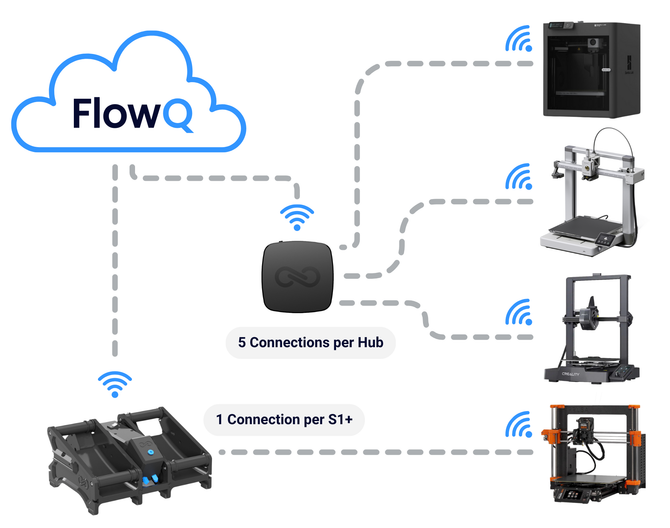
FlowQ Connect creates a secure tunnel between 3D printers on your local network and the FlowQ cloud. This allows you to remotely control your printers, automate your print queue, sync files across machines, and manage your setup from anywhere.
As long as your computer is powered on and connected to the same network as your printers, FlowQ can communicate with them.
Setting Up FlowQ Connect
1. Log into your FlowQ account and navigate to the FlowQ Connect tab.

2. Click Add Agent.

3. Download the FlowQ Connect app for your computer (Mac, Windows, or Linux).

4. Open the app after installing and click the "Pair" button.

5. It will generate a 6-digit pairing code.

6. Enter the 6-digit pairing code into FlowQ to link your computer. Once paired, name your tunnel so it is easy to identify.

7. Once paired, name your tunnel so it is easy to identify.

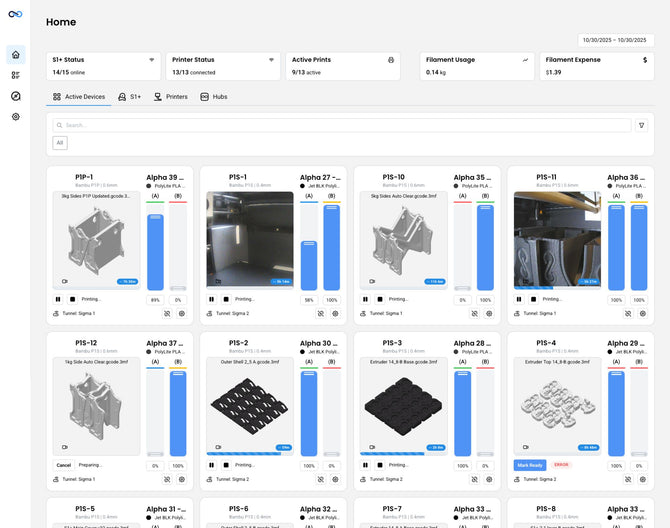
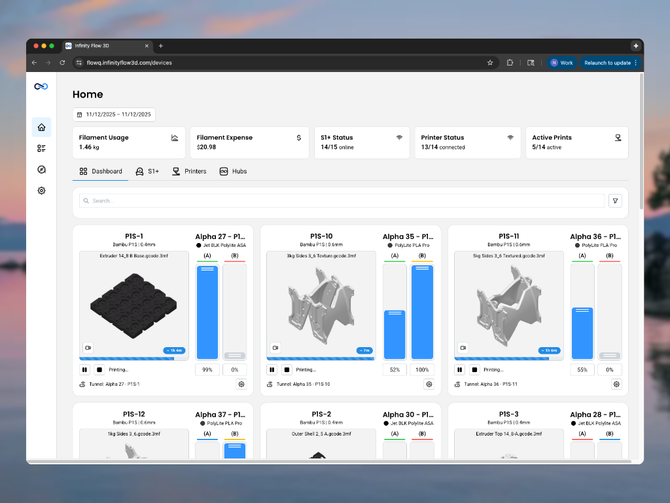
8. All Done! Now you can add a new printer (See Guide) or edit an existing one, then select your FlowQ Connect Agent under the Tunnel section.

Using FlowQ Connect
Once installed, FlowQ Connect runs in the background on your computer and maintains the connection automatically.
As long as your computer stays powered on and connected to the internet, FlowQ will maintain access to your printers for remote control, file management, and automation.
Troubleshooting
No pairing code appears:
- Make sure the FlowQ Connect app is open and running.
- Restart the app to generate a new pairing code.
Pairing code not working:
- Double-check that the code was entered correctly.
- Pairing codes expire after a few minutes.
- Click Relink in the app to generate a new code if needed.
Agent shows offline in FlowQ:
- Make sure your computer is powered on.
- Check that it has internet access.
- Restart the FlowQ Connect app if needed.
Printer not connecting:
- Ensure the printer and your computer are on the same Wi-Fi network.
- Double-check printer connection settings such as IP address or login credentials.
- Verify that the correct FlowQ Connect tunnel is selected under the printer’s Tunnel setting in FlowQ.
When Should You Use FlowQ Connect?
- You already have a computer running on your network
- You want a simple, hardware-free setup
- You are getting started or running a smaller setup
If you need a dedicated always-on device, consider using a FlowQ Hub instead.

