
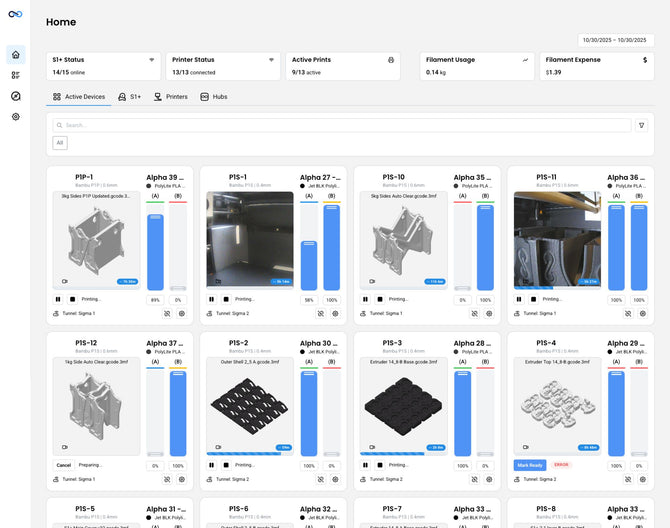
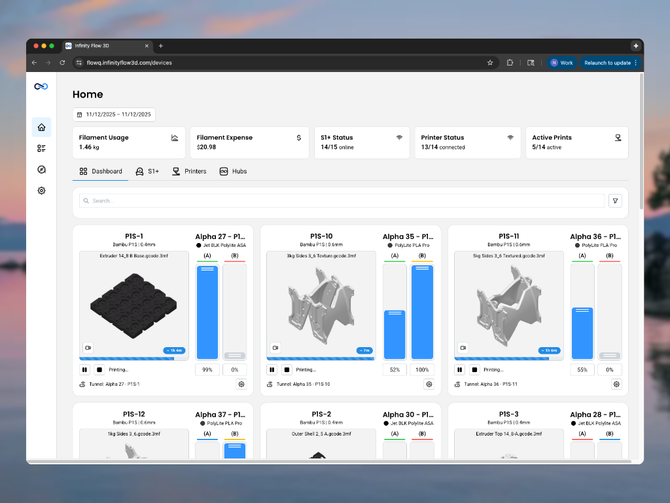
The S1 plus, FlowQ hub, and FlowQ 3D print farm manager software user interface in the background The S1 plus, FlowQ hub, and FlowQ 3D print farm manager software user interface in the background

60+ Supported 3D Printers

FlowQ 3D Printer Compatibility

Designed to support real-world print farms running mixed printer brands, firmware, and workflows.

Start Using FlowQ
Multi-Brand Compatible
Compatible Printers
Use With Auto-Ejection Systems
Learn More
Multi-Material Printing
Learn More

Compatible Printer Models

Not affiliated with the brands shown. Logos are used only to represent compatibility only.

This is not a complete list. Flow Q can be used with many 3D printers not listed using any of the connection methods above. Have a question about your printer? Ask our team.

Connection Methods:
  • Bambu Labs Printers using LAN-mode & Dev-mode
  • Prusa Printers via Prusa Link
  • Flashforge on LAN-mode
  • Klipper based printers via Moonraker or brand specific API's (No firmware modifications needed for most 3D printers).
Bambu Labs

Bambu Labs printers are compatible with FLowQ when using LAN-only mode with dev mode enabled. FlowQ does work with multicolor prints using the AMS with up to 4 filaments (more coming soon).

How to put your Bambu Printer in Dev Mode

Currently Compatible:

  • A1-mini
  • A1
  • P1P
  • P1S
  • X1C
  • X1E
  • P2S
  • H2S
  • H2D
  • H2D Pro

Creality

FlowQ will work with many Creality printers without any firmware modifications required. Just input the pritner's IP address into FlowQ and start printing.

Currently Compatible:

  • Ender 3 V3 KE
  • Ender 3 V3 Plus
  • K1
  • K1 Max
  • K1C
  • K2
  • K2 Plus
  • K2 Pro
Elegoo

The printers below come with everything installed from Elegoo and require no modifications to work with FlowQ.

Compatible Printers:

  • Centauri Carbon
  • Orangestorm Giga
  • Neptune 4
  • Neptune 4 Plus
  • Neptune 4 Pro
  • Neptune 4 Max
Flashforge

The Flashforge printers listed below can be connected to FlowQ when LAN-mode is enabled. Get notified when these become compatible.

Compatible Printers:

  • Adventure 5M
  • Adventure 5M Pro
  • Adventure 5X (Multi-color coming soon)
  • Glider 3
FLsun

FlowQ will work with any Klipper Based FLsun printer with moonraker installed. The printers below come with moonraker installed from FLsun and require no extra setup.

  • S1
  • S1 Pro
  • T1 Max
  • T1 Pro
  • V400
  • V400 Max
IdeaFormer

FlowQ will work with any Klipper based IdeaFormer printer with moonraker installed. The printers below come with moonraker installed from IdeaFormer and require no extra setup.

  • IR3 v2
Prusa

All Prusa Printer's with wifi are compatible with FlowQ via Prusa Link. Multi-color printing is not currently supported through FlowQ on Prusa printers. Get notified when multi-color/multi-mateiral becomes available.

  • MK4
  • MK4s
  • Core 1
  • XL
  • Mini+
  • MK3/s/+ (with Prusa link)
  • MK2.5/s/+ (with Prusa link)
Qidi

FlowQ will work with any Klipper Based Qidi printer with moonraker installed. The printers below come with moonraker installed from Qidi and require no extra setup.

  • Q1 Pro
  • Q2
  • Plus-4
Rat Rig

FlowQ will work with any Klipper (or RatOS) Based Rat Rig printer with moonraker installed. The printers below come with moonraker installed from Rat Rig and require no extra setup.

  • C-Core pro v1.3
  • V-Chonk
  • V-Chonk 3Z Mod
  • V-Core 3
  • V-Core 3 IDEX
  • V-Core 4
  • V-Core 4 Hybrid
  • V-Core 4 IDEX
  • V-Minion
Sovol

FlowQ will work with any Klipper based Sovol printer with moonraker installed. The printers below come with moonraker installed from Sovol and require no extra setup.

  • Zero
  • SV06 Ace
  • SV07
  • SV07 Plus
  • SV08
  • SV08 Max
Voron

FlowQ will work with any Klipper based voron printer with moonraker installed. The printers below come with moonraker installed and require no extra setup.

  • Voron Trident
  • Voron 2
  • Voron Switchwire
  • Voron Legacy
  • Voron 0
Others ...

FlowQ can be used with any Klipper based printer with Moonraker installed.

To know if your printer can be used with FlowQ, find out if it comes with moonraker installed from the factory, of if there is a method to install Klipper & Moonraker on your printer (this is a very common upgrade for older printers).


Auto-Ejection Systems

For setups that can eject the print, FlowQ can be used to set up a print queue and looping to keep your printer running 24/7.

Get Started with FlowQ

Step 1: Slice & Process File

Log into FlowQ anywhere in the world. Keep prints running over weekends and while you are away.

Step 2: Upload to FlowQ

Cloud data uses end-to-end & at rest encryption of all user data. Proudly developed and hosted in the USA.

Step 3: Setup Queue & Looping

No server setup. No code. Just connect a FlowQ hub to your account to communicate with your printers.

Print Ejection Kits

Use FlowQ with auto-ejection kits from manufacturers like:

Just process your print files using one of these external tools before uploading to FlowQ.

Used by Our Production Team

Custom Slicer Profiles

Modify your printer's start & end G-code and save a new custom printer profile in your slicer.

Slice parts using your auto-ejection profile and upload them straight to FlowQ.

See our Free Designs & Slicer Profiles

Up to 16 colors - all printer models

Multi-Material Printing

Basic multi-material printing is supported on all printers. Support for features like automatic color mapping and smart print routing are limited to specific printer models.

Get Started With FlowQ
Only Bambu Printers

Automatic Mapping

Bambu printers with an AMS can accept single or multi color prints. Materials are automatically mapped by FlowQ to

Only Bambu Printers

Smart Print Routing

Automatically re-map & send tasks to printers with matching filament.

All Printers

Direct Material Mapping

FlowQ supports multi-color printing on any printer connected to your dashboard with direct mapping.


Frequently Asked Questions

Answers to some of our most common questions.

What is a printer connection?

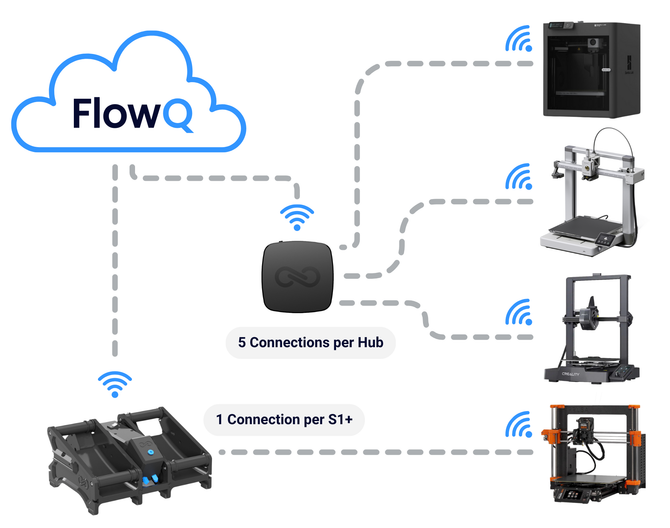
A printer connection is any 3D printer that is both:

  1. Registered to your FlowQ account, and
  2. Connected to a FlowQ Tunnel (such as a FlowQ Hub or S1+).

You can register unlimited printers to your FlowQ account. However, only printers that are actively connected to a Tunnel count as printer connections and can be controlled through the FlowQ dashboard.

If a printer is registered but not connected to a Tunnel:

  • You will not be able to start prints from FlowQ
  • The printer will appear Offline
  • It will display the label “No tunnel selected”

You can switch which printers are connected to a Tunnel at any time inside your account. This allows you to manage and control only the printers you actively want connected to the cloud, while keeping others registered but inactive. Connecting a printer is as simple as selecting a tunnel from a drop down menu.

What is a print job?

A print job is counted any time a print is successfully started on a 3D printer from your FlowQ account.

Print job usage resets on the first day of every month for users on the Free or Basic Plan.

If you reach your monthly print job limit, FlowQ will pause your queue and will not send the next job to a printer until your usage resets.

If a print is stopped before completion, it may still count toward your monthly print jobs if it successfully started and began printing. However, jobs that never begin printing — such as failed uploads or printer-side errors that prevent the print from starting — are not counted.

You can view your complete print history at any time from the FlowQ dashboard to see all jobs started from your account.

Can FlowQ handle automatic print ejection systems?

Yes. FlowQ is designed to integrate seamlessly with automatic ejection setups. You can queue multiple jobs back-to-back or setup loops for continuous, unattended printing.

What can I control remotely?

All FlowQ features are fully accessible from anywhere in the world.

Just log into your account to view live printer status, manage print queues, and control jobs remotely without needing to be on the same Wi-Fi network.

Every FlowQ tunnel creates a secure, encrypted connection to the cloud, so you get complete access to your print farm from any device, wherever you are.

Is the cloud connection secure?

FlowQ is proudly developed and hosted in the United States with security built into every layer.

All data is protected with end-to-end encryption, meaning information traveling between your printers and the FlowQ cloud is fully encrypted during transmission.

We also use encryption at rest, so any data stored in our databases remains secured even when not in use. This dual-layer approach ensures that print data, device credentials, and user information are always protected against unauthorized access.

Additionally, all Wi-Fi credentials are stored locally on your device tunnels and are never uploaded or stored in the cloud, ensuring complete protection of your network details.

Can I view my S1+ app data in FlowQ?

Yes. The S1+ app is being fully merged into FlowQ, and all existing S1+ features will be available inside FlowQ with a cleaner, faster, and more intuitive interface. You’ll be able to view and manage your S1+ data directly from the FlowQ dashboard.

No paid subscription is required to access any features previously available in the S1+ app. You can also register devices, add printers, create filament profiles, track filament usage, and explore the full dashboard without a subscription. A paid plan is only required if you want to connect printers to the cloud (necessary to for most 3D Printer related functionality).

Is there a free trial for FlowQ?

You can get started completely free using the FlowQ Free Plan — no credit card required. You can create an account, access the full dashboard, add printers, register tunnels, and start starting up your dashboard at no cost.

If you need higher usage limits than the free plan offers, you can upgrade at any time. FlowQ is designed to scale with you — start free, upgrade when you’re ready.

Will the S1+ app and FlowQ be combined?

Yes. The S1+ app is being fully merged into FlowQ to create one unified platform.

All features from the S1+ app — including filament tracking, device management, and remote monitoring— will be available directly inside FlowQ with a faster, more intuitive interface.

And importantly, every feature that was previously free in the S1+ app will remain free forever. Once merged, you’ll be able to access everything from a single dashboard with improved performance, reliability, and usability.

How much does FlowQ cost?

You can start using FlowQ completely free — no credit card required. You can create an account, access the full dashboard, add printers, register devices, and start organizing your setup at no cost.

If you need higher usage limits than the free plan offers, you can upgrade to any of our paid plans at any time. More details can be found here.

What makes FlowQ unique?

FlowQ was built from real-world print farm experience in our high output production environment.

It combines automation, monitoring, and queue control into one intuitive platform. No local servers, no complex setup, and powerful features that stay simple to use.

It’s effortless to setup, free to get started, and easily expandable as your print farm grows.

Can I use FlowQ with Shopify Flow?

Yes.

FlowQ can be integrated with Shopify Flow by using the FlowQ Open API together with HTTP request actions in Shopify Flow.

This allows you to automate actions based on Shopify events such as:

  • New orders
  • Order line items
  • Inventory changes
  • Fulfillment updates
  • Custom Shopify workflows

For example, you can automatically enqueue print jobs in FlowQ when an order is placed or updated.


Important note about Shopify plans:

Sending HTTP requests directly from Shopify Flow is limited by Shopify plan level. On plans where HTTP requests are not available, third-party Shopify apps can be used to send HTTP requests from Flow, allowing FlowQ automations to work on the Shopify Basic plan as well.


This makes it possible to build FlowQ-powered print automations on nearly any Shopify setup.