



Overview
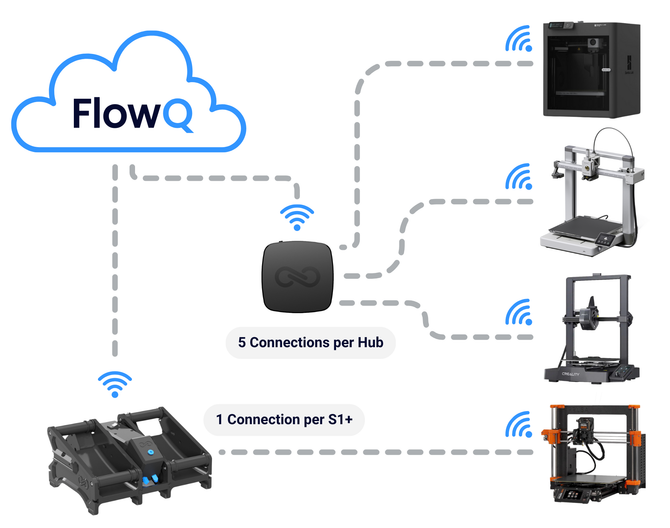
The FlowQ Hub is a device used to securely connect up to five 3D printers to FlowQ’s cloud-based automation platform. The Hub establishes an encrypted communication tunnel between your local network and FlowQ, enabling remote control, print queue automation, and full access to FlowQ features from anywhere.
Printers must be on the same local network as the Hub. The Hub is provisioned using Web Bluetooth, and no Wi-Fi credentials are ever stored in the cloud. All connections use end-to-end and at-rest encryption.
Setting Up the FlowQ Hub
1. Plug the Hub into power using the provided USB cable. Use a 5V DC 1A power adapter (recommended: the included adapter).
2. Once powered, the Hub’s status light will turn on. Ensure your Wi-Fi network has internet access and that your printers are on the same network the Hub will join.
Connecting the Hub to Wifi
-
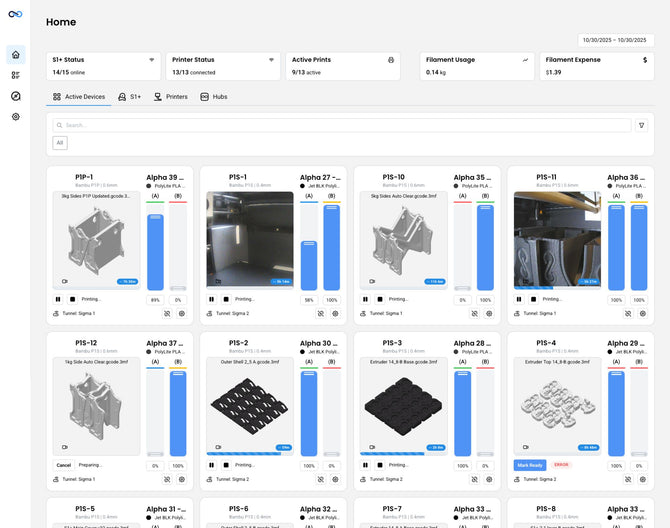
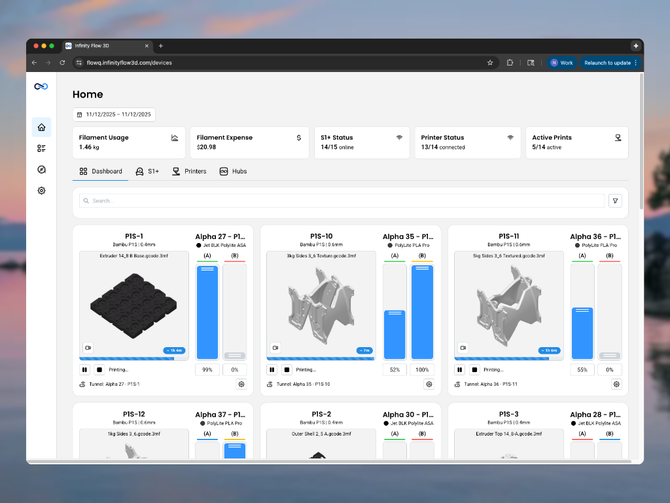
Log into your FlowQ account and navigate to the Hubs tab.

2. Click Add Hub.
3. Press and hold the Bluetooth button on the Hub until the LED begins flashing blue.
4. On a computer (not a phone or tablet), click Search Devices in the FlowQ interface. Select Hub-Server from the Web Bluetooth popup and click Connect.
5. Name the Hub, then enter your 2.4 GHz Wi-Fi network name and password. Wait for the Hub to connect to Wi-Fi.
6. If an update is required, the Hub’s light will turn white during the process. Once complete, check that the Hub shows as online in FlowQ.
Assigning Printers to a Hub
-
Go to the Printers tab in FlowQ. Add a new printer or select an existing printer to edit.

2. Under the Tunnel section, open the dropdown menu and select your Hub from the list.
-
-
-
If the Hub is already connected to five printers, it will not appear in the dropdown.
-
-

Light Behavior
🔵 Flashing blue: Hub is in Bluetooth mode.
🔵 Solid blue: Hub is connected via web Bluetooth.
⚪️ White: Firmware update in progress.
🟢 Normal solid light: Hub is online and connected.
🔴 Blinking red or unexpected state: An error occurred. Typically caused by a failed update.
Troubleshooting
Web Bluetooth pairing fails (device not appearing):
-
-
-
You must use a computer with Chrome or Edge; mobile devices are not supported.
-
Ensure Bluetooth is enabled on your computer.
-
Make sure the Hub is in Bluetooth mode (flashing blue).
-
Move closer to the Hub to improve Bluetooth signal strength.
-
Refresh the page or restart your browser if the device list does not appear.
- Use a Windows PC or Mac is recommended for Web Bluetooth provisioning. Linux operating systems may have problems with web-bluetooth connectivity.
-
-
Wi-Fi provisioning fails:
-
-
-
The Hub only supports 2.4 GHz Wi-Fi networks.
-
If using a combined 2.4/5 GHz SSID, try creating a temporary 2.4 GHz-only network.
-
Move the Hub closer to your router to ensure a stronger signal.
-
Double-check that the Wi-Fi password is correct.
-
Restart your router if it has reached its device limit.
-
-
Hub goes offline unexpectedly:
-
-
-
Verify that the Hub is still powered with a green light indicating that it is on.
-
Power cycle the Hub and allow it to reconnect.
-
Check your router for network changes or Wi-Fi interruptions.
-
Move the Hub to a location with a better signal.
-
Delete the Hub from your FlowQ account and re-add it if connectivity issues persist.
-
-

