




Overview
This guide walks through installing FlowQ Connect on a headless Linux device such as a Raspberry Pi, home server, or any always-on machine.
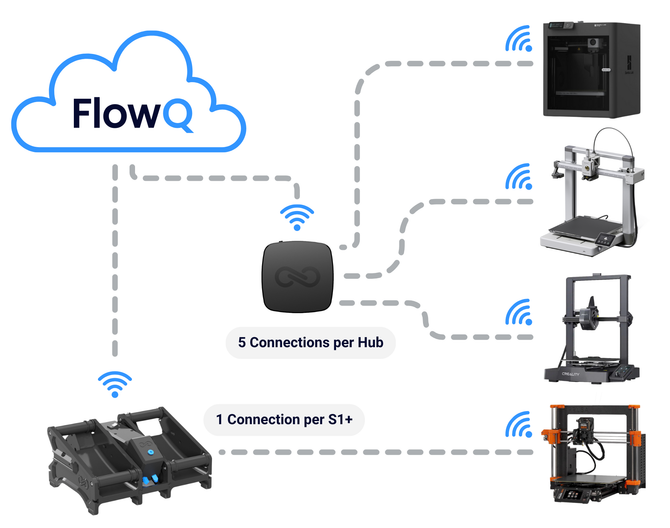
FlowQ Connect runs as a lightweight background service that creates a secure tunnel between 3D printers on your local network and the FlowQ cloud. This allows you to control your printers remotely, automate print queues, and manage your setup.
This setup is ideal for users who want a dedicated, always-on connection without relying on their main computer.
Requirements
- A Linux device (Raspberry Pi, server, etc.)
- Terminal access (SSH or direct)
- Internet connection
- Printers connected to the same Wi-Fi network
Getting the Install Command from FlowQ
1. Navigate to the FlowQ Connect tab.

2. Click Add Agent

3. Select Use Terminal instead of downloading the app.

4. Copy the install command provided.

Installing FlowQ Connect
1. Open a terminal on your device.
2. Paste and run the install command from FlowQ, or use the command below:
curl -fsSL https://github.com/infinity-flow-3d/flowq-connect-releases/releases/latest/download/install.sh | bash
This will install FlowQ Connect as a background service and start it automatically.
Pairing Your Device
1. After installation, a 6-digit pairing code will appear in your terminal.

2. Return to FlowQ, click the pair button, and enter the 6-digit pairing code.

3. Once paired, name your agent so it is easy to identify.

If No Pairing Code Appears
If you do not see a pairing code after installation, run:
flowq-connect start
This will start the service and generate a pairing code.
Assigning to a Printer
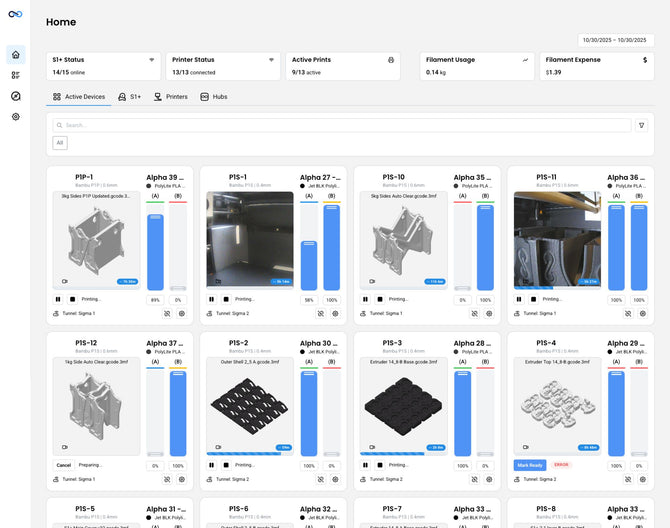
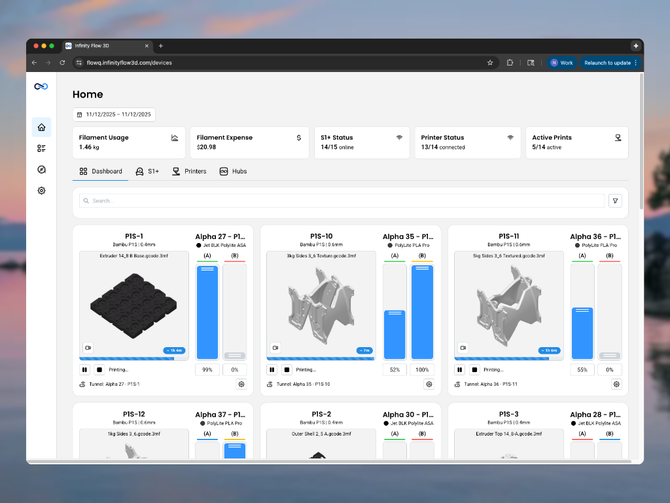
Go to the Printers tab in FlowQ. Add a new printer (See Guide) or edit an existing one, then select your FlowQ Connect tunnel under the Tunnel section.

Managing FlowQ Connect
Start
Start the FlowQ Connect background service.
flowq-connect start
Stop
Stop the FlowQ Connect background service.
flowq-connect stop
Relink
Generate a new pairing code and reconnect the device.
flowq-connect relink
Uninstall
Remove FlowQ Connect and clear all local data.
flowq-connect uninstall
Troubleshooting
No pairing code appears:
-
Run
flowq-connect startto start the service. - Check for any errors in the terminal.
- Re-run the install command if needed.
Pairing code not working:
- Codes expire after a few minutes.
-
Run
flowq-connect relinkto generate a new code. - Ensure the code is entered correctly in FlowQ.
Agent shows offline:
- Ensure the device is powered on.
- Check internet connectivity.
-
Restart the service using
flowq-connect stopthenflowq-connect start.
Printers not connecting:
- Ensure printers are on the same network as the Linux device.
- Verify printer IP address and connection settings.
- Make sure the correct tunnel is selected in FlowQ.

)