
3D printing workflow automation steps using Shopify, FlowQ, and Slack on a light gray background. Workflow automation interface with Shopify, FlowQ, and Slack integration on a white background

Mit Zapier, Make oder der Flowq-API erstellen

Automatisieren Sie Ihren 3D-Druck-Workflow

Erstellen Sie individuelle Arbeitsabläufe mit all Ihren Tools, um Ihre 3D-Drucker zu automatisieren und zu steuern.

Arbeitsabläufe erstellen

FlowQ-Konto erstellen
Blue circular arrow icon

Automatisieren Sie wiederkehrende Aufgaben

Hören Sie auf, Druckaufträge manuell zur Warteschlange hinzuzufügen, den Filamentbestand zu überprüfen und Druckaufträge zu überwachen.

Blue chain link icon on a white background

Verbinden Sie Tools, die Sie bereits nutzen

FlowQ ersetzt Ihre vorhandenen Tools nicht – es verbindet sich mit ihnen. Über 8.000 App-Verbindungen sind über Zapier, Make und die FlowQ API möglich.

Blue gear icon on a white background

Erstellen Sie Workflows, die Sie wirklich brauchen

Jede Druckfarm ist anders. Erstellen Sie individuelle Workflows, die zu Ihren Betriebsablässen passen.

Blue upward arrow icon

Skalieren ohne Komplexität zu erhöhen

Integrationen ermöglichen FlowQ, mit Ihrem Unternehmen zu skalieren, indem sie Engpässe beseitigen, anstatt zusätzliche Schritte hinzuzufügen.


Beispiel-Workflows für 3D-Druckunternehmen

Verwandeln Sie wiederkehrende 3D-Druckaufgaben in automatisierte Arbeitsabläufe.

Workflow automation interface with steps for Shopify, Looping by Zapier, Google Sheets, and more. This workflow can be used to automatically send 3D print jobs to FlowQ when a shopify order is placed.

Erstellt mit Zapier

Druckdateien in die Warteschlange einfügen, wenn eine Shopify-Bestellung aufgegeben wird

  1. Neue Shopify-Bestellung wird aufgegeben.
  2. Suchen Sie in einem Google-Sheet nach den benötigten Druckdateien für jede SKU.
  3. Fügen Sie die Dateien mit der korrekten Anzahl von Wiederholungen, basierend auf der Bestellmenge, zur Druckwarteschlange hinzu.
  4. Wiederholen Sie den Vorgang für jeden Artikel in der Bestellung.

Siehe Einrichtungsanleitung

A Make workflow diagram of webhooks and FlowQ on a white background. This workflow can be used to add 3D print jobs to flowQ when a QR code is scanned.

Mit Make erstellt

Druckdateien zur Warteschlange hinzufügen, wenn ein QR-Code gescannt wird

  1. Ein QR-Code wird gescannt und der Link aufgerufen.
  2. Der Webhook empfängt Metadaten wie die Druckdateikennung und die Anzahl der Iterationen.
  3. FlowQ fügt die angegebene Druckdatei zur Warteschlange hinzu.
  4. Eine Antwort bestätigt, ob der Druck erfolgreich in die Warteschlange gestellt wurde oder gibt einen Fehler zurück.
Zapier workflow setup with FlowQ and Google Sheets on a light gray background. This flow automatically syncs filament  inventory changes to a google sheet.

Mit Zapier erstellt

Filamentbestand mit Google Sheet synchronisieren

  1. Der Workflow wiederholt sich täglich.
  2. Die Daten zum Filamentbestand werden aus FlowQ abgerufen.
  3. Ein Google Sheet wird aktualisiert, um den aktuellen Bestand widerzuspiegeln.

Automatisierte Workflows mit FlowQ erstellen

Ohne Code, mit wenig Code oder vollständig maßgeschneidert – Sie haben die Wahl

Zapier is a no-code automation tool that integrates FlowQ with 7,000+ apps such as Shopify, eBay, and Google sheets to automate 3D print queues and workflows

See FlowQ app for Zapier

Make is a no-code automation platform connecting FlowQ to over 3,000 apps including Etsy, WooCommerce, Google Sheets, and AI tools for automated 3D print workflows.

See FlowQ app for Make

FlowQ’s Open API provides direct access to print queues, printer status, print files, and filament inventory for custom automation and integrations.

See API Docs

Häufig gestellte Fragen

Antworten auf unsere häufigsten Fragen.

Can I use FlowQ integrations with Shopify, Etsy, or WooCommerce?

Yes.

Using Make or Zapier, FlowQ can be connected to ecommerce platforms like Shopify, Etsy, WooCommerce, and others to automatically trigger print workflows from new orders or updates or inventory level changes.

Can I use FlowQ with Shopify Flow?

Yes.

FlowQ can be integrated with Shopify Flow by using the FlowQ Open API together with HTTP request actions in Shopify Flow.

This allows you to automate actions based on Shopify events such as:

  • New orders
  • Order line items
  • Inventory changes
  • Fulfillment updates
  • Custom Shopify workflows

For example, you can automatically enqueue print jobs in FlowQ when an order is placed or updated.


Important note about Shopify plans:

Sending HTTP requests directly from Shopify Flow is limited by Shopify plan level. On plans where HTTP requests are not available, third-party Shopify apps can be used to send HTTP requests from Flow, allowing FlowQ automations to work on the Shopify Basic plan as well.


This makes it possible to build FlowQ-powered print automations on nearly any Shopify setup.

Can I trigger workflows using QR codes?

Yes.

Tools like Make and Zapier support webhook-based workflows, which means actions can be triggered when a specific URL is accessed.

This allows QR codes to be used as triggers. When a QR code is scanned and the associated link is opened, the webhook can start a workflow that performs actions such as adding a print to the queue, selecting a print file, or running other automated steps.

This makes QR codes useful for fast, repeatable workflows on the shop floor, where scanning a code can immediately trigger the correct automation.

Can I build my own custom integration?

Absolutely.

If Make or Zapier don’t fit your needs, the Open API allows you to build custom applications, internal dashboards, or fully custom automation systems around FlowQ.

Do integrations replace FlowQ’s dashboard?

No.

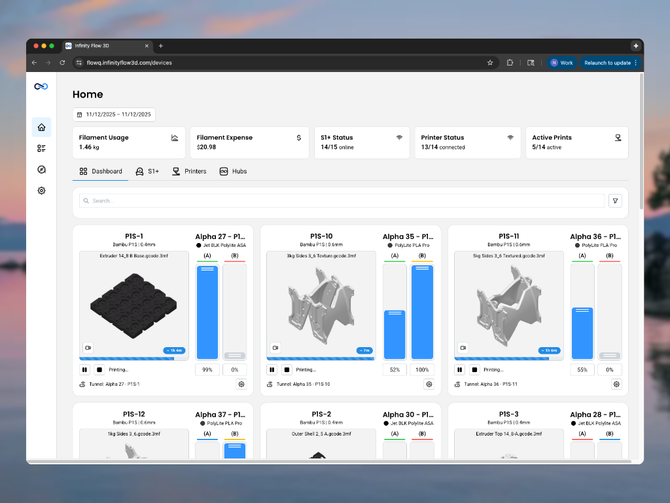
Integrations extend FlowQ — they don’t replace it. The FlowQ dashboard remains your central view, while integrations handle automation, triggers, and external system connections.

Is the FlowQ Open API publicly available?

Yes.

FlowQ provides a documented public REST API that allows programmatic access to print queues, print files, printer status, queue tasks, and filament inventory.

See API Docs

Are integrations real-time?

FlowQ integrations are event-driven. Depending on the platform and workflow, actions can run near real-time or on short polling intervals defined by the automation tool.

Which integration should I use: Make, Zapier, or the Open API?

It depends on your workflow:

  • Make is best for advanced automation, branching logic, and complex workflows
  • Zapier is best for quick setup and connecting FlowQ to business tools
  • Open API is best for custom software, internal tools, or developer-built systems

Many users use more than one.

Do I need to know how to code to use FlowQ integrations?

No.

Most users get started using Make or Zapier, which are no-code platforms designed for building automations visually. If you want deeper customization, FlowQ also offers an Open API for developers.

What tools does FlowQ integrate with?

FlowQ integrates with automation platforms like Make and Zapier, as well as through a fully documented Open API. This allows FlowQ to connect to thousands of tools including ecommerce platforms, spreadsheets, databases, and internal systems.